Devices & Setup4 min read
IPTV App Firestick Installation: How to Install It Safely
Some IPTV players are in the Amazon Appstore; others are installed from the developer's site. Here is how to install either kind on a Firestick safely.
By CatchON TV Team
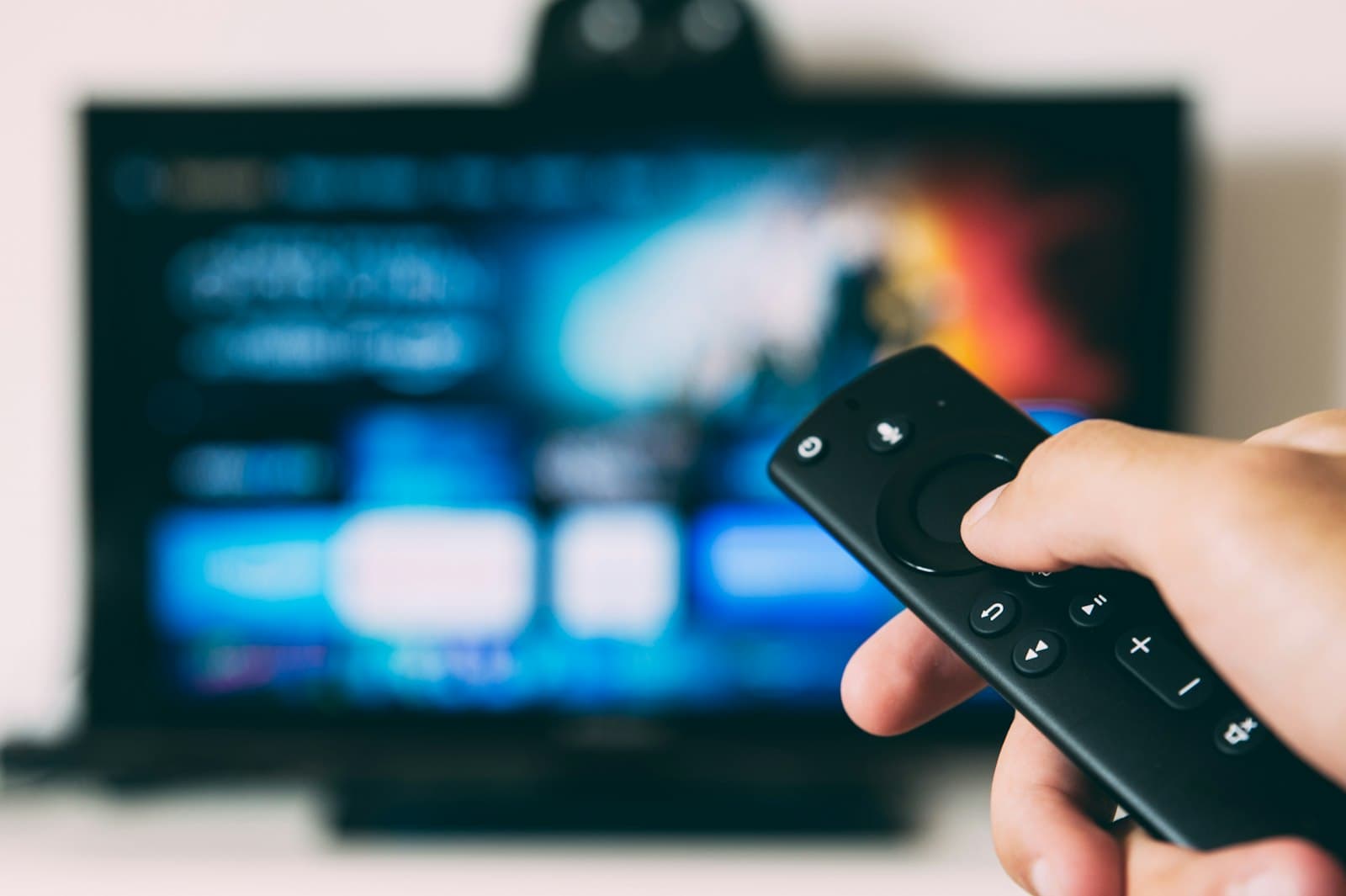
Fire TV devices, including the Firestick, are some of the most popular streaming devices for IPTV. Installing an IPTV app on a Firestick is usually straightforward, but there are two routes: from the Amazon Appstore, or — for apps not listed there — from the developer's official website using an installer app. This guide explains both routes and the safety steps that matter. Whichever route you take, the goal is the same: an IPTV app Firestick owners can use safely.
It covers installation only. For the full journey from unboxing to watching, see our complete Firestick walkthrough. For playback settings once the app is installed, see tuning an IPTV player on Firestick.
Fire TV and Firestick are device categories where compatibility depends on the app and setup; check with us before relying on a particular app.
Before you start
- Update your Fire TV: Settings → My Fire TV → About → Check for updates.
- Make sure there is free storage: Settings → Applications → Manage installed applications.
- Decide which player you want and find its official website or store listing.
Route 1: install from the Amazon Appstore
This is the simplest and safest route.
- From the home screen, open Find (or the search icon).
- Search for the player by name.
- Check the developer name matches the official developer.
- Select Get or Download.
- Open the app once installed.
Apps from the Appstore update automatically in most cases.
Route 2: install from the developer's official website
Some players are not in the Amazon Appstore. Fire TV allows installing them using an installer app, commonly a downloader utility available from the Appstore.
Step 1: install an installer app
Search the Amazon Appstore for a downloader app and install it.
Step 2: enable developer options
On many recent Fire TV devices, developer options are hidden by default:
- Go to Settings → My Fire TV → About.
- Select your device name repeatedly (about seven times) until a message says you are a developer.
- Go back to My Fire TV → Developer options.
Step 3: allow the installer app
In Developer options, open Install unknown apps (on some older models, Apps from Unknown Sources) and allow it only for the installer app you just installed.
Step 4: download from the official source
Open the installer app and enter the download address published on the developer's official website. Avoid addresses shared in forums or videos unless you can confirm they come from the developer.
Step 5: install and clean up
After installation, delete the downloaded installation file to save space, and consider switching off the unknown-apps permission again until you need to update.
Safety checklist
| Check | Why |
|---|---|
| Developer identifiable | Reduces risk of modified or fake apps |
| Official download address | Avoids tampered installers |
| Unknown apps allowed only for one installer | Limits exposure |
| Permission switched off afterwards | Prevents accidental installs |
| No modified "premium" versions | Can contain hidden code |
| No apps claiming pre-loaded channels | Legitimate players do not supply content |
Our general guide to installing IPTV applications safely covers these points in more depth.
After installing
Open the player, add your service using the details supplied by your provider and let the channels and guide load. If you use the Firestick for a lot of IPTV, consider moving the player to the front of your apps row for quick access. For the other tools Fire TV owners sometimes add, see the types of IPTV apps for Firestick.
Updating sideloaded apps
Apps installed from outside the Appstore may not update automatically. Check the developer's site periodically, then repeat the installer steps with the new version. Keep the old version until you have confirmed the new one works.
Keeping the Fire TV secure afterwards
A few ongoing habits keep a Firestick healthy long after installation:
- Turn on parental controls in Fire TV settings if children use it; a PIN can be required for purchases and certain apps.
- Review installed apps every few months and remove anything unused or unfamiliar.
- Leave unknown-apps permission off except when deliberately updating a trusted app.
- Keep Fire TV system updates on, as they include security fixes.
- Remove your account details from the player if you sell or give away the stick, and consider a factory reset first.
Troubleshooting installation
- "App not installed" message: free storage, then try again; confirm the file matches your device type.
- Developer options missing: use the About → device name method above.
- Installer app cannot download: check the address carefully; the site may have changed.
- App installs but will not open: restart the Fire TV; reinstall from the official source.
Questions about installing IPTV apps on a Firestick
Do I need to enable developer options to install IPTV apps on a Firestick?
Only for apps that are not in the Amazon Appstore. Apps from the Appstore install normally without developer options.
Is it safe to allow unknown apps on a Fire TV?
It is reasonably safe if you allow it only for one trusted installer app, download from developers' official websites and switch it off when you are done.
Why can't I find Developer options on my Fire TV?
On many recent models they are hidden. Go to Settings, My Fire TV, About and select your device name repeatedly until developer mode is enabled.
Installed, safely
An IPTV app on a Firestick installs in minutes from the Appstore, or with a few extra, careful steps from a developer's official site. Keep permissions tight and sources official, and your Fire TV stays secure. Then continue with setting up the player.